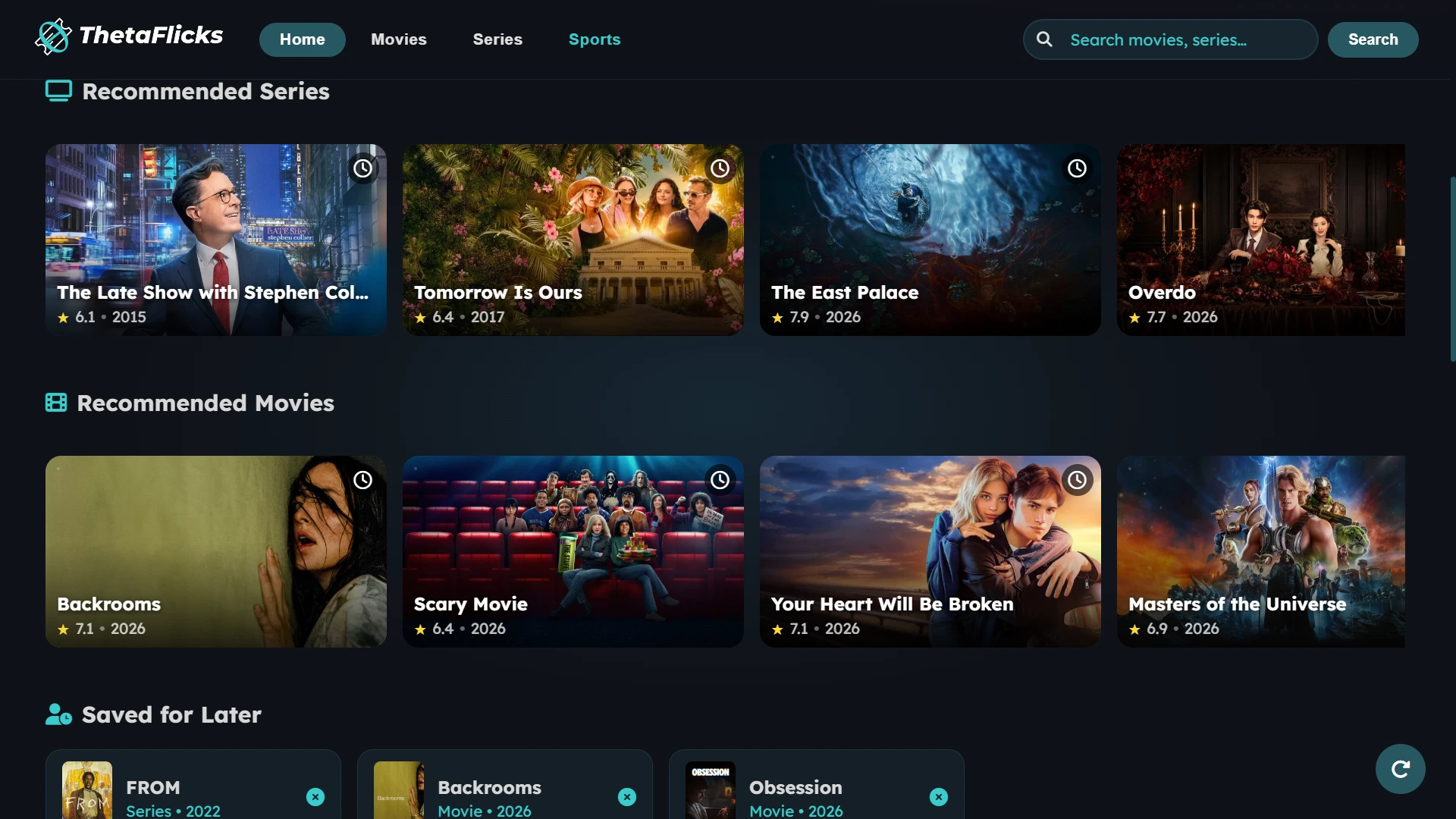
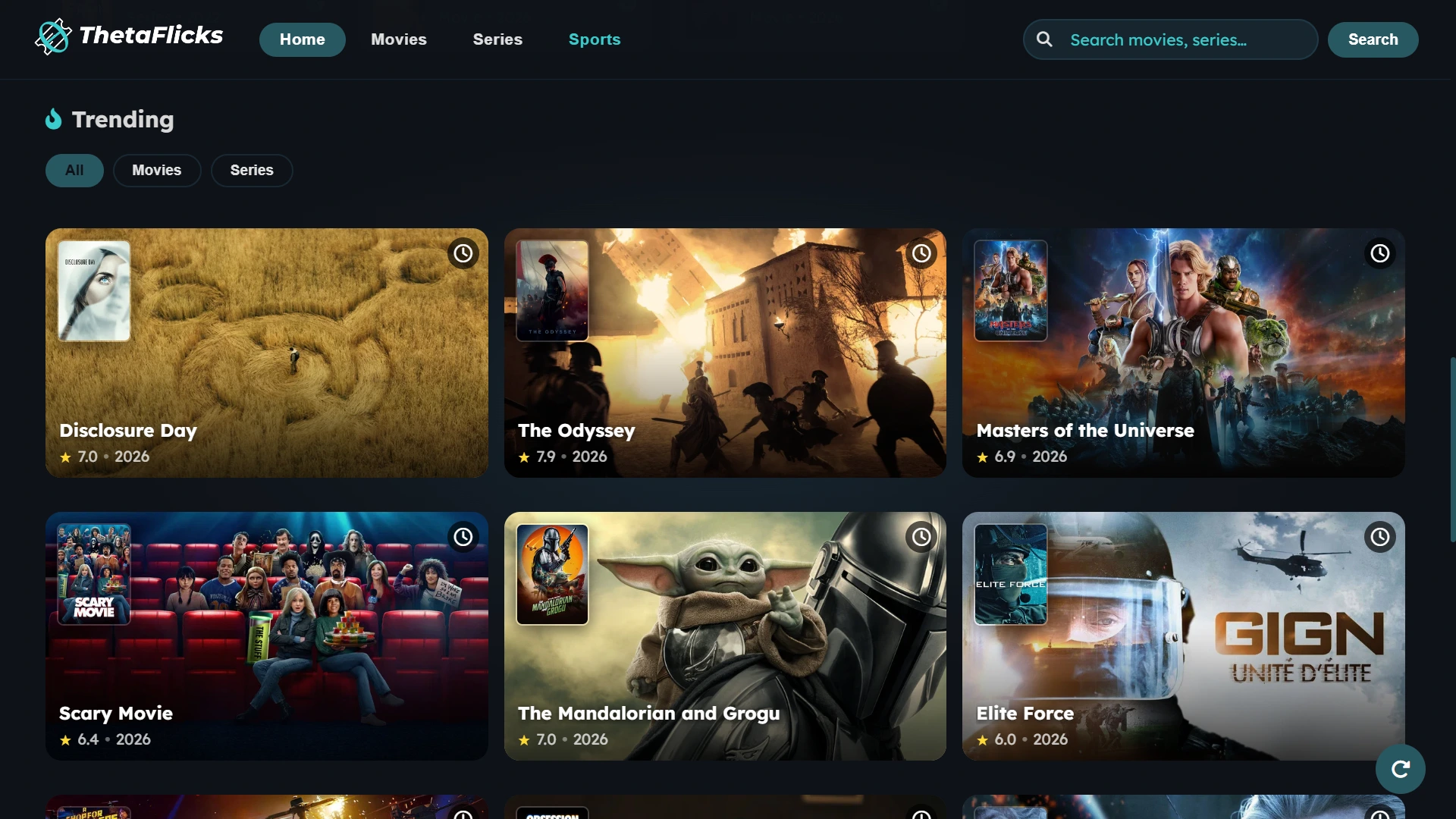
Watch everything.
No ads. No login.

Movies, series, and live sports in one place. Completely free.
Pick your platform below to get started.

* Live sports are currently only available on desktop.

Android APK · Android 8+ Windows EXE installer · Windows 10+ Linux Snap package Linux AppImage · All distros

Setup Guide & FAQ

Windows setup — SmartScreen warning
1. Temporarily disable your antivirus (it often flags unsigned installers).
2. Open the downloaded .exe file.
3. If Windows SmartScreen appears, click More info then Run anyway.
4. Wait for installation to complete.
Windows setup — Disable Smart App Control (if blocked)

If Windows Smart App Control prevents the app from opening even after bypassing SmartScreen, you can disable it. Only do this if it actively interferes with your user experience.

1. Press Win + X and select Terminal (Admin) or Windows PowerShell (Admin).
2. Copy and paste the following command, then press Enter:
Set-ItemProperty -Path "HKLM:\SYSTEM\CurrentControlSet\Control\CI\Policy" -Name "VerifiedAndReputablePolicyState" -Value 0
3. Restart your computer for the changes to take effect.
4. Try opening the app again. (You can re-enable it later by running the same command with -Value 1).
Linux setup — Installing the Snap package
1. Download the ThetaFlicks.snap and move it to your Desktop.
2. Open a terminal and navigate to your Desktop: cd ~/Desktop
3. Install the Snap package: sudo snap install ThetaFlicks.snap --dangerous
4. Launch the app from your applications menu, or run ThetaFlicks in the terminal.
Linux setup — Using the AppImage

AppImages work on almost all Linux distributions without needing to install anything.

1. Download the ThetaFlicks.AppImage file.
2. Right-click the file, select Properties, go to the Permissions tab, and check "Allow executing file as program".
3. Alternatively, open a terminal in the download folder and run: chmod +x ThetaFlicks.AppImage
4. Double-click the AppImage file to launch the app.
Android setup — Play Protect installation issues

If you encounter a "Blocked by Play Protect" or "App not installed" error, you may need to temporarily disable it. Only do this if you cannot install the app normally.

1. Open the Google Play Store app.
2. Tap your profile icon at the top right, then tap Play Protect.
3. Tap the Settings (gear) icon in the top right corner.
4. Toggle off "Scan apps with Play Protect".
5. Try installing the APK again. It is recommended to re-enable this feature after installation for ongoing security.
Subtitle / Image fix — DNS setup (optional)

If some images or subtitles don't load, your ISP might be blocking external domains. Setting Google's public DNS usually fixes this.

Android

1. Open Settings and search for "Private DNS".
2. Select "Private DNS provider hostname".
3. Enter dns.google and save.

Windows

1. Press Win + R, type control, and hit Enter.
2. Go to Network and Internet > Network and Sharing Center > Change adapter settings.
3. Right-click your active connection (Wi-Fi/Ethernet) and select Properties.
4. Select Internet Protocol Version 4 (TCP/IPv4) and click Properties.
5. Choose "Use the following DNS server addresses":
Preferred: 8.8.8.8
Alternate: 8.8.4.4
6. Select Internet Protocol Version 6 (TCP/IPv6) and click Properties.
7. Choose "Use the following DNS server addresses":
Preferred: 2001:4860:4860::8888
Alternate: 2001:4860:4860::8844
Is it safe?

Yes. ThetaFlicks doesn't run ads, sell data, or inject malware. The Windows SmartScreen warning is a standard false positive for independent, unsigned installers.

How do I update?

A refresh button appears in the app if an update is available. For major updates, just re-download the installer from this page.